Automations
Let your board do the work with rules like "when this happens, do that", from a template or built yourself.
An automation is a rule that does something as soon as something happens on your board. A status changes, a date arrives or a new item is created: the rule then sets a status, assigns someone or sends a notification. Every rule reads like a plain sentence.
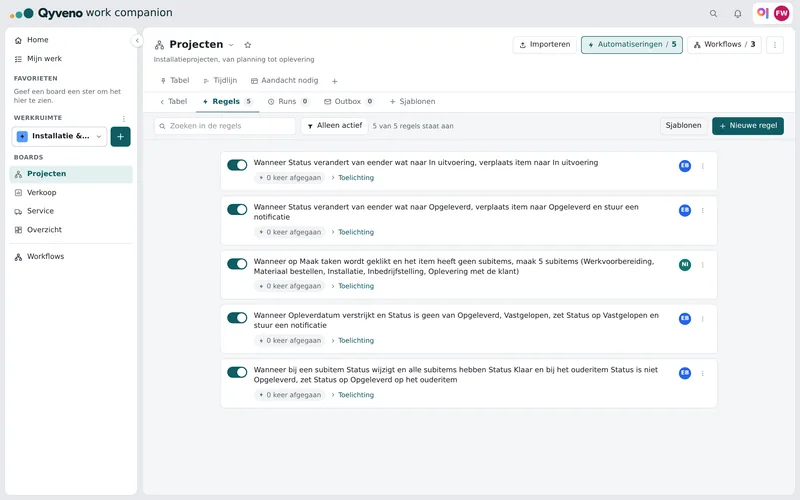
Open the automation center
Each board has its own rules.
- Open the board.
- In the board header, click Automate. The number next to it is how many rules the board has.
- The center opens in place of the view. The back button in the top left takes you back to the view you were on.
You'll see four tabs:
- Rules: all rules on this board, each as a sentence, for example "When Status changes from anything to Done, move item to Finished".
- Runs: what the rules did, with the trigger and the steps.
- Outbox: the emails a rule prepared, with the status of each one. See also Mail connections.
- Templates: ready-made rules to start from.
Start from a template
A template is the quickest way.
- Open the Templates tab.
- Pick a category, such as Statuses, Dates or Communication.
- Click a template. The builder opens with everything that is already decided.
- Fill in the gaps, such as the column or the label. Below the rule you'll see what is still missing.
- Click Save.
Build a rule yourself
- On the Rules tab, click New rule.
- Under When, choose what sets the rule off. For example Status changes, Item is created, Date arrives, A button is clicked or At a set time.
- Should the rule only act sometimes? Under Only if, click Add condition.
- Under Then do, choose what should happen with Add action. For example Set a status, Assign a person, Send a notification or Create subitems. A rule can have several actions.
- Click Save. If something is still missing, the builder tells you what.
At the top of the builder you can choose As a sentence or As a workflow. This doesn't change the rule, only how you see it. In As a workflow you can also add steps like If … then … otherwise … and Wait until …. Longer rules with several steps have a place of their own: Workflows.
You can also give a rule a Description that explains why it exists, and choose who manages it.
Turn rules on or off, edit and delete
- Use the switch to the left of a rule to turn it on or off. A rule that is off doesn't run and shows off.
- Turn on Active only to see only the rules that are on.
- From the menu to the right of a rule, choose Edit, Open on the canvas or Delete. What a deleted rule already did stays visible under Runs.
Below each rule you can see how often it has run and when it last did.
Usage stats for admins
An admin can see what all rules in the organization do in Administration › Usage › Automations. Choose a Period to see the number of Actions, Runs, what Failed, the top 5 boards and creators, and a table of All automations. Click a rule to open it on its board. Download gives you the table as a file.